Quick Answer: The best SSD for gaming in 2026 is the WD_BLACK SN850 NVMe — PCIe Gen4 speeds up to 7,000 MB/s read, 2TB capacity, and the WD_BLACK Dashboard for monitoring and gaming mode optimisation. Best budget entry: WD_BLACK SN770 (250GB, 5,150 MB/s, outstanding price per GB). Fastest absolute read speed: Seagate FireCuda 530 at 7,300 MB/s with PS5 compatibility. Best SATA SSD (for older systems): Crucial MX500, 560 MB/s with AES 256-bit encryption and integrated power loss immunity. For most gamers, a 1TB NVMe Gen4 drive at the $80–$120 price point is the sweet spot.
The moment I swapped my old spinning hard drive for an NVMe SSD — the specific moment the Windows boot screen disappeared faster than I'd physically registered it had appeared — I sat there for a few seconds just staring at my desktop. Genuinely confused. Like something had gone wrong. Computers aren't supposed to be this fast, said the part of my brain that had been conditioned by a decade of watching progress bars.
They are, though. Now they are.
And yet — and this is the thing that still gets me — a surprising number of gaming rigs in 2026 are still running games off hard disk drives. Spinning magnetic platters from a technology architecture that's been largely unchanged since the 1950s. While GPUs have gone through seven generations and CPUs have doubled their core counts twice over, some systems are still loading game assets off a mechanism that physically moves a needle across a disk. Like a record player. In a gaming PC. With RGB.
This isn't a judgment — there are legitimate budget reasons to hold onto an HDD. But there's a point where other upgrades become academic if the bottleneck is the storage. A game doesn't care how fast your CPU can process physics calculations if it's waiting three minutes to load the level.
An SSD removes that constraint. An NVMe Gen4 SSD removes it so thoroughly that loading screens start to feel like affronts.
Here are six of the best, tested, and ranked for 2026.
What You Actually Need to Understand Before Buying
The three categories. SSDs come in three practical tiers for gamers. SATA SSDs (like the Crucial MX500) top out around 560 MB/s — a massive improvement over HDDs, but the slowest of the SSD options. NVMe Gen3 drives (like the Samsung 970 EVO Plus) reach 3,500 MB/s. NVMe Gen4 drives (WD_BLACK SN850, SN770, Seagate FireCuda 530, SABRENT Rocket 4 Plus) hit 5,000–7,300 MB/s. For gaming specifically, Gen3 versus Gen4 produces smaller real-world differences than the spec gap implies — asset streaming and level loads are meaningful, but your frame rate is still GPU-bound. Gen4 matters most for DirectStorage games, large open worlds, and the PS5 expansion slot.
Form factor. M.2 is the physical shape — a small rectangular stick that plugs directly into a slot on your motherboard, no cables required. Most modern gaming motherboards have at least two M.2 slots. SATA SSDs can come in M.2 form or the traditional 2.5" rectangular format. Check your motherboard before you buy.
Capacity. 500GB is genuinely tight in 2026 — a single AAA game can run 100–150GB. 1TB is the practical minimum for a dedicated gaming drive. 2TB is the comfort zone. Splitting storage is sensible: 1TB NVMe for the OS and active games, a cheaper 2TB HDD for archiving games you're not currently playing.
Heat. High-performance NVMe Gen4 drives generate real heat under sustained load. The WD_BLACK SN850 and Seagate FireCuda 530 both have optional heatsink variants — if your motherboard M.2 slot doesn't have a built-in thermal pad, consider the heatsink version. Throttling under heat is the enemy of consistent performance.
DirectStorage. Microsoft's DirectStorage technology allows games to stream assets directly from the SSD to the GPU without routing through the CPU — dramatically reducing load times in supported titles. It requires an NVMe SSD, a DirectX 12 GPU, and Windows 11. Not all games support it yet, but the number of titles adopting it is growing. If you're buying a Gen4 drive in 2026, you're future-proofed for it.
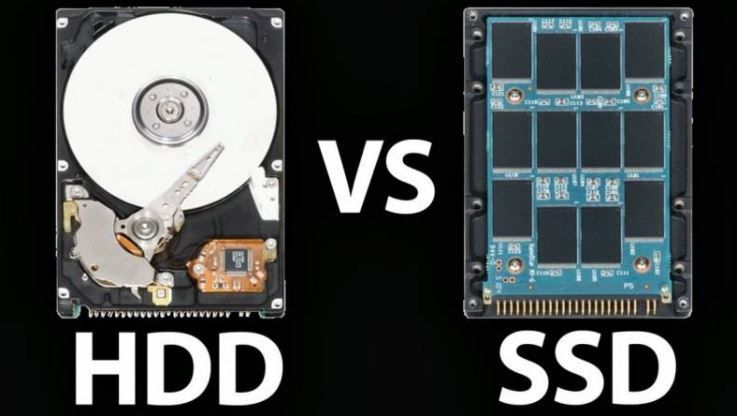
SSD vs. HDD: The Real Difference in Numbers
An average 7,200 RPM HDD delivers sequential read speeds of around 80–160 MB/s. A SATA SSD delivers 500–560 MB/s — roughly three to four times faster. An NVMe Gen3 drive delivers up to 3,500 MB/s — about twenty times faster than an HDD. An NVMe Gen4 drive at 7,000 MB/s is forty-plus times faster than a spinning disk.
In practical terms, a game that took two minutes to load on an HDD loads in fifteen to twenty seconds on a SATA SSD. On an NVMe Gen4 drive, that same load drops to five to eight seconds. That's not a marginal improvement. It's a different experience of the same game.
The other difference nobody talks about enough is consistency. HDDs slow down as they fill up, fragment over time, and degrade with mechanical wear. SSDs deliver near-identical performance whether they're 10% full or 90% full, and have no moving parts to wear mechanically. They fail eventually — flash memory has write-cycle limits — but the failure modes are more predictable and generally slower to develop than a head crash on a spinning disk.
At a Glance — 2026 Comparison Table
| # | Product | Type | Interface | Read Speed | Capacity | Best For | Rating |
|---|---|---|---|---|---|---|---|
1 | WD_BLACK SN850 NVMe | NVMe M.2 | PCIe Gen4 | 7,000 MB/s | 2TB | Premium gaming, DirectStorage | ★★★★½ — 4.5/5 |
2 | Seagate FireCuda 530 | NVMe M.2 | PCIe Gen4 | 7,300 MB/s | 1TB | PS5 + PC, fastest raw reads | ★★★★¼ — 4.3/5 |
3 | Samsung 970 EVO Plus | NVMe M.2 | PCIe Gen3 | 3,500 MB/s | 1TB | Proven reliability, Gen3 systems | ★★★★ — 4.2/5 |
4 | SABRENT Rocket 4 Plus | NVMe M.2 | PCIe Gen4 | 7,000 MB/s | 1TB | High-speed Gen4, Gen3 compatible | ★★★★ — 4.1/5 |
5 | WD_BLACK SN770 NVMe | NVMe M.2 | PCIe Gen4 | 5,150 MB/s | 250GB | Budget Gen4, entry-level upgrade | ★★★★ — 4.1/5 |
6 | Crucial MX500 | SATA M.2 / 2.5" | SATA III | 560 MB/s | 500GB | Budget builds, older systems, HDD replacement | ★★★★ — 4.0/5 |
How Much Storage Do You Actually Need?
This question gets answered wrong constantly — either by undershooting (buying 500GB and immediately regretting it) or overshooting based on numbers that sound impressive rather than the capacity you'll use.
The practical breakdown in 2026:
500GB: Technically possible. One operating system installation (roughly 30–60GB) plus three to four modern AAA titles. You will constantly be uninstalling and reinstalling games. For anyone with more than a handful of active games, this becomes a full-time management job. 1TB: The realistic minimum. OS plus eight to ten active games at average current file sizes. Enough breathing room that you're not making uninstall decisions every week. 2TB: Comfortable. OS, active game library, game screenshots, clips, recording software, and still room left. The tier where storage stops being something you think about. 4TB+: For content creators, people who record and archive gameplay footage, or genuinely compulsive game hoarders who want everything installed simultaneously.
One more note on pricing: NVMe Gen4 1TB drives have fallen significantly in cost since 2022. What was a $200+ purchase is now routinely available for $80–$120, depending on the model and current market. There has never been a cheaper time to buy a fast SSD.
Final Thoughts
Storage upgrades are the least glamorous hardware purchase you can make. Nobody's taking pictures of their M.2 drive for a build showcase. There's no overclock to brag about. You just install it, and things are faster.
But of all the upgrades in a gaming PC, an SSD moving from an HDD is probably the single most noticeable improvement per pound spent. Not the GPU. Not the RAM. The storage. Because every single interaction you have with your computer — booting, launching games, switching between applications, accessing saved files — runs through that component first.
The WD_BLACK SN850 is the answer if you want the best and have the budget. The FireCuda 530 if you're on PS5 and want cross-platform consistency. The Samsung 970 EVO Plus is for your board if it doesn't support Gen4. The SABRENT Rocket 4 Plus is if you want Gen4 performance at a lower price. The SN770 is the most affordable route to Gen4 performance. The Crucial MX500 is for the system you're upgrading if it doesn't have an M.2 slot at all.
Any of them will change how your rig feels. That's not an exaggeration. It's just physics.
Can we help? We've done the research for you and found the Best SSD For Gaming on Amazon. Every day, we read hundreds of reviews and try the highest-rated products we have on our list.
Best SSD For Gaming - Reviews
WD_BLACK SN850 NVMe — Best Overall
Rating: 4.5/5
Product information
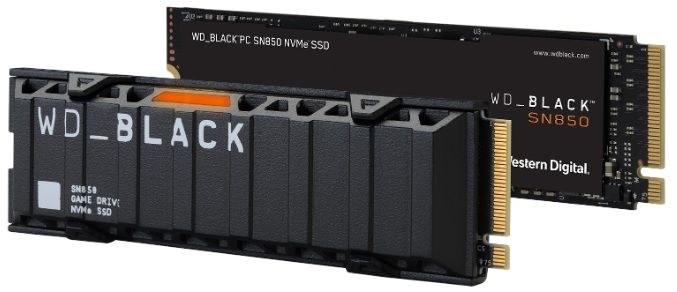
The WD_BLACK SN850 is what you buy when you want the best gaming SSD and don't want to revisit the decision. Not the absolute fastest in this group on raw sequential reads — that title belongs to the FireCuda 530 — but the most comprehensively engineered for gaming specifically, with the software, the capacity options, and the sustained performance profile to justify the premium.
The headline numbers are 7,000 MB/s sequential read and 5,300 MB/s sequential write, both on PCIe Gen4. In sustained workloads — large game installs, asset streaming in open world titles, DirectStorage transfers — the SN850 maintains those figures more consistently than most competitors. The difference between peak speed and sustained speed is where many high-performance SSDs disappoint; the SN850's thermal management and controller architecture handle extended load better than average.
The 2TB capacity is meaningful for serious gaming libraries. In 2026, with games routinely shipping at 80–150GB and day-one patches adding another 20GB before you've even launched the title, 1TB has become the floor rather than the comfort zone. Two terabytes gives you the OS, a dozen active games, and room to breathe.
The WD_BLACK Dashboard is more useful than most SSD companion software. Gaming Mode reduces background activity to prioritise read/write performance during active game sessions. Drive health monitoring gives you meaningful metrics rather than just a traffic-light indicator. Available on Windows, which covers the vast majority of gaming PC users.
The heat consideration is real and should be managed. The SN850 under sustained load generates temperatures that benefit from active heatsink coverage — either the optional heatsink model or a motherboard M.2 thermal pad. Thermal throttling is the enemy of consistent performance, and preventing it is cheaper than replacing a drive that's been running hot for two years.
Pros
- 7,000 MB/s read / 5,300 MB/s write — among the fastest sustained Gen4 performance available
- 2TB capacity — enough for OS, active game library, and expansion room
- WD_BLACK Dashboard with Gaming Mode for active performance optimisation
- DirectStorage compatible — future-proofed for next-gen game loading architecture
- M.2 2280 form factor — toolless installation in compatible slots
- Strong sustained performance under extended load (not just peak burst)
Cons
- Premium price — most expensive drive on this list at 2TB
- Generates significant heat under heavy load — heatsink version recommended
- Not designed for NAS or server workloads
- WD_BLACK Dashboard is Windows only
Our Verdict: The SN850 is the clearest answer to "what's the best gaming SSD" if budget isn't a hard constraint. The capacity, the sustained speed, the software integration, and the DirectStorage readiness combine into a package that ages well. Buy the heatsink variant if your board doesn't have M.2 thermal coverage.
Seagate FireCuda 530 — Fastest Raw Read Speed
Rating: 4.3/5
Product information
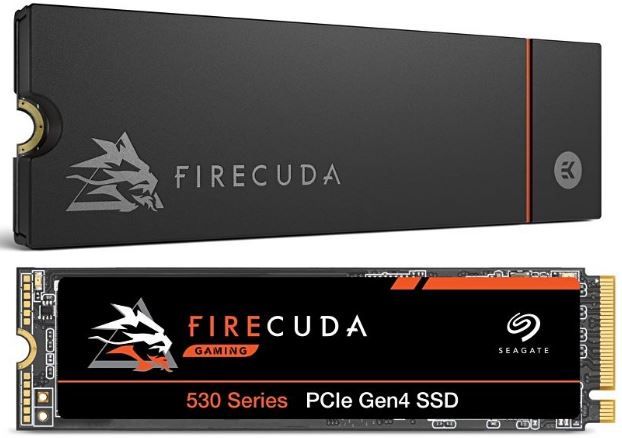
The FireCuda 530 holds the fastest sequential read speed on this list at 7,300 MB/s — and it's not a trivial margin. The Seagate-validated E18 controller paired with 3D TLC NAND is the combination that produces that ceiling, and it sustains those speeds under workloads that would cause lesser drives to throttle.
Two things make the FireCuda 530 worth particular attention in 2026. First, PS5 compatibility — it's officially validated for the PlayStation 5's M.2 expansion slot, which many NVMe drives are technically compatible with but not officially tested against. For cross-platform gamers who want a single high-performance SSD standard across both their PC and PS5 build, this removes the guesswork. Second, the included Rescue Data Recovery Services — three years of coverage for data recovery in the event of drive failure. That's meaningful protection at this price tier.
The 3D TLC NAND contributes to durability in a way that cheaper QLC NAND SSDs don't match. Under the kind of sustained read/write loads that come from streaming open-world game environments, TLC endurance outperforms QLC over the drive's lifespan. The 5-year warranty reflects Seagate's confidence in that endurance rating.
Heat management is the recurring theme with Gen4 drives at this performance level. The FireCuda 530 runs hot under sustained load — Seagate offers a heatsink variant and recommends it for any build without active M.2 airflow. Worth the premium.
Pros
- 7,300 MB/s sequential read — fastest raw read speed on this list
- PS5 officially compatible — validated for Sony's M.2 expansion slot
- 3D TLC NAND — more durable under sustained workloads than QLC alternatives
- 5-year limited warranty plus 3-year Rescue Data Recovery Services
- E18 controller produces consistent, sustained performance, not just peak burst
- Available up to 4TB for large game libraries
Cons
- Premium pricing — reflects the performance tier
- Significant heat generation — heatsink version strongly recommended
- 1TB entry point on the list — 500GB variant too small for serious game libraries
Our Verdict: The FireCuda 530 earns its position for two specific use cases: players who want the absolute fastest sequential read speed available, and PS5 owners who want to upgrade console storage with a drive that's been properly validated rather than assumed compatible. The Rescue Data Recovery Services are a genuine differentiator at this price point.
Samsung 970 EVO Plus — Best for Gen3 Systems
Rating: 4.2/5
Product information
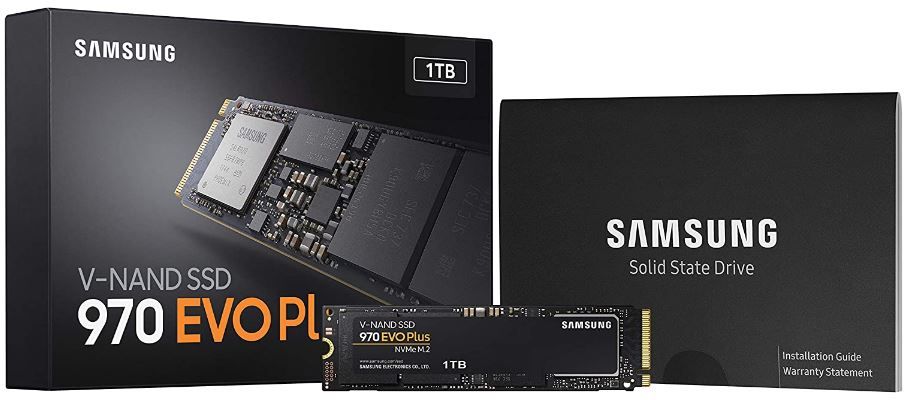
The Samsung 970 EVO Plus is the drive you recommend to someone with an older system — a motherboard with PCIe Gen3 M.2 slots but no Gen4 support. At 3,500 MB/s, it's not Gen4 speed. It is, however, a reliably excellent Gen3 performer with Samsung's V-NAND manufacturing behind it, and a track record long enough to take seriously.
Samsung's V-NAND — vertical stacking of NAND cells rather than planar layout — allows higher storage density without reducing cell longevity. The Dynamic Thermal Guard monitors die temperature and adjusts performance to avoid throttling automatically, which produces more consistent real-world results than drives that hit peak speed and then fall off a cliff under sustained load. For large game installs and extended asset streaming sessions, consistency matters more than the number on the spec sheet.
Samsung Magician is the most comprehensive SSD management software in this category. Drive health monitoring, performance benchmarking, firmware updates, and a "performance optimisation" tool that refreshes drive responsiveness over time. It doesn't change the underlying hardware, but the visibility it provides into drive status is genuinely useful for long-term ownership.
The compatibility caveat: some users have reported issues with specific motherboard/BIOS combinations — a recurring pattern in Samsung 970-series drives on certain Intel and AMD platforms. Check the Samsung compatibility list before purchasing if you're on a less common board configuration.
Pros
- Samsung V-NAND: higher density, proven long-term endurance
- Dynamic Thermal Guard maintains consistent performance under sustained load
- Samsung Magician: the most feature-rich SSD management software on this list
- 5-year warranty with strong TBW rating (600 TBW at 1TB)
- Excellent choice for PCIe Gen3 systems that can't use Gen4 drives
- 53% faster than its predecessor (970 EVO)
Cons
- Gen3 interface — not a Gen4 drive; maximum 3,500 MB/s versus 7,000+ for Gen4
- Some compatibility issues were reported with specific motherboard/BIOS configurations
- Higher price than some Gen4 alternatives at equivalent capacity
- Write endurance concerns raised by some heavy-use reviewers
Our Verdict: The 970 EVO Plus is the right answer if your motherboard is Gen3 only — it delivers near-maximum Gen3 performance with Samsung's characteristic reliability. If your board supports Gen4, spend a little more for the SN850 or FireCuda 530 and don't look back.
SABRENT Rocket 4 Plus — Best Alternative Gen4 Pick
Rating: 4.1/5
Product information
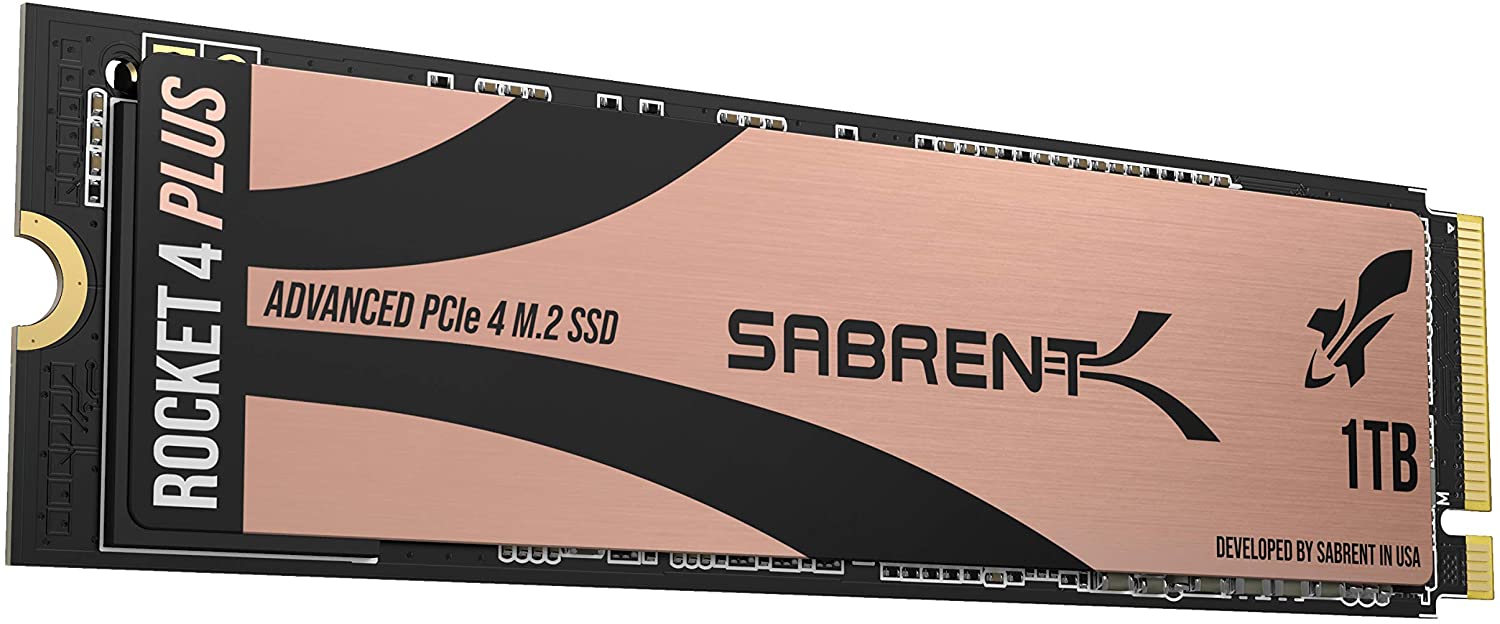
The SABRENT Rocket 4 Plus doesn't have the brand recognition of WD or Seagate in mainstream consumer circles, but it delivers comparable Gen4 performance at a price that often undercuts both. Read speeds up to 7,000 MB/s and write speeds up to 5,300 MB/s place it squarely in the same tier as the SN850 — and the backward compatibility with PCIe Gen3 makes it a more flexible purchase for systems in transition.
The PCIe Gen4 x4 implementation means it uses four PCIe lanes — the maximum for M.2 NVMe drives — which is why the bandwidth ceiling is where it is. In Gen3-compatible mode, it operates at Gen3 speeds on older boards, which removes the risk of buying a drive your system can't fully utilise.
Future-readiness is a genuine selling point here. DirectStorage support, compatibility with next-generation gaming titles designed around NVMe throughput, and the PCIe 4.0 headroom to stay relevant as games increasingly assume fast storage as baseline hardware. A 1TB Gen4 drive bought in 2026 should remain performant well into the next GPU and CPU generation.
The honest caveat: a handful of users have reported compatibility issues with specific board configurations — worth cross-referencing your motherboard's compatibility documentation before purchasing. Heat generation under sustained load is real, consistent with the category.
Pros
- 7,000 MB/s read / 5,300 MB/s write — full Gen4 performance tier
- Backward compatible with PCIe Gen3 — works in older systems at reduced speed
- DirectStorage support for next-generation game loading
- Competitive price versus WD_BLACK and Seagate at equivalent specs
- Durable design rated for intensive workloads
- 1TB capacity covers OS plus a solid active game library
Cons
- Some compatibility issues were reported with specific motherboard configurations
- Heat generation under heavy load — thermal management recommended
- Not the absolute fastest Gen4 drive (marginally behind FireCuda 530)
- Less established brand reputation than WD or Samsung in this category
Our Verdict: The SABRENT Rocket 4 Plus is the value-conscious Gen4 choice — comparable performance to the SN850 at a lower price point, with the flexibility of Gen3 backward compatibility. If the WD_BLACK premium doesn't fit the budget, this is the drive you look at next.
WD_BLACK SN770 NVMe — Best Budget Gen4 Entry
Rating: 4.1/5
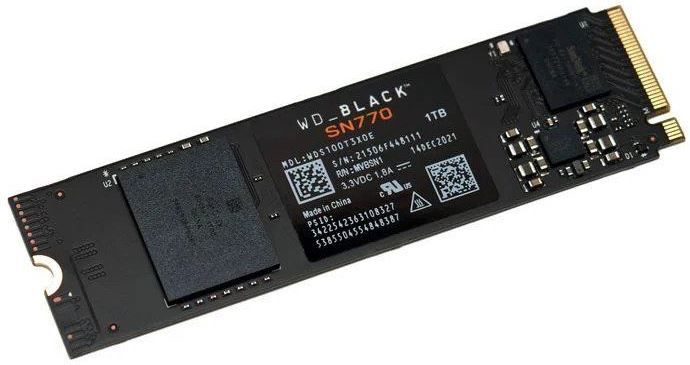
Western Digital - Internal Gaming SSD, WD_BLACK 250GB SN770 NVMe, WDS250G3X0E.
Product information
The SN770 is the entry point to WD_BLACK's Gen4 lineup — and at 250GB, it's specifically designed for the upgrade scenario where someone wants to move their OS and primary game off an HDD onto an SSD without spending heavily on storage they may not fill immediately.
Five thousand, one hundred and fifty megabytes per second. That number. On a budget-tier drive entry point, in a form factor the size of a stick of chewing gum, at a cost that's dropped to the point where the calculation has become obvious. The SSD market has moved. The SN770 is the evidence.
The PCIe Gen4 interface means it saturates Gen4 slots — but critically, it also falls back to Gen3 on older motherboards without issue. If you're upgrading a system that might itself get upgraded in the next year or two, buying a Gen4 drive now means you won't need to upgrade the SSD again when you move to a Gen4 board.
DirectStorage support is present. WD_BLACK Dashboard is included — the same software as the SN850, scaled to the drive tier. Gaming Mode, health monitoring, and the full feature set.
The limitation is the 250GB capacity, which is genuinely constraining. A modern game install, plus the OS, will push you into territory where you're managing what stays installed and what gets moved to secondary storage. For a dedicated game drive in a system with a separate OS SSD, 250GB is a starter amount. For most use cases, the 1TB variant is the wiser purchase.
Pros
- 5,150 MB/s read — full Gen4 performance for a budget price point
- DirectStorage support — future-proofed for next-gen loading architecture
- Backward compatible with PCIe Gen3
- WD_BLACK Dashboard included — Gaming Mode and health monitoring
- Outstanding price per GB versus Gen4 competitors
- Compact M.2 2280 form factor
Cons
- 250GB is genuinely limited — the 1TB variant is the more practical purchase
- Heat generation consistent with Gen4 category
- No write speed figure is as prominently highlighted as read (lower write efficiency)
Our Verdict: The SN770 at 250GB is the proof-of-concept purchase — the drive you buy to understand what Gen4 NVMe feels like before committing to a larger capacity. At 1TB, it becomes one of the most compelling value propositions on this list. The 250GB entry point is best understood as an OS drive or a secondary game partition.
Crucial MX500 — Best SATA SSD for Older Systems
Rating: 4.0/5
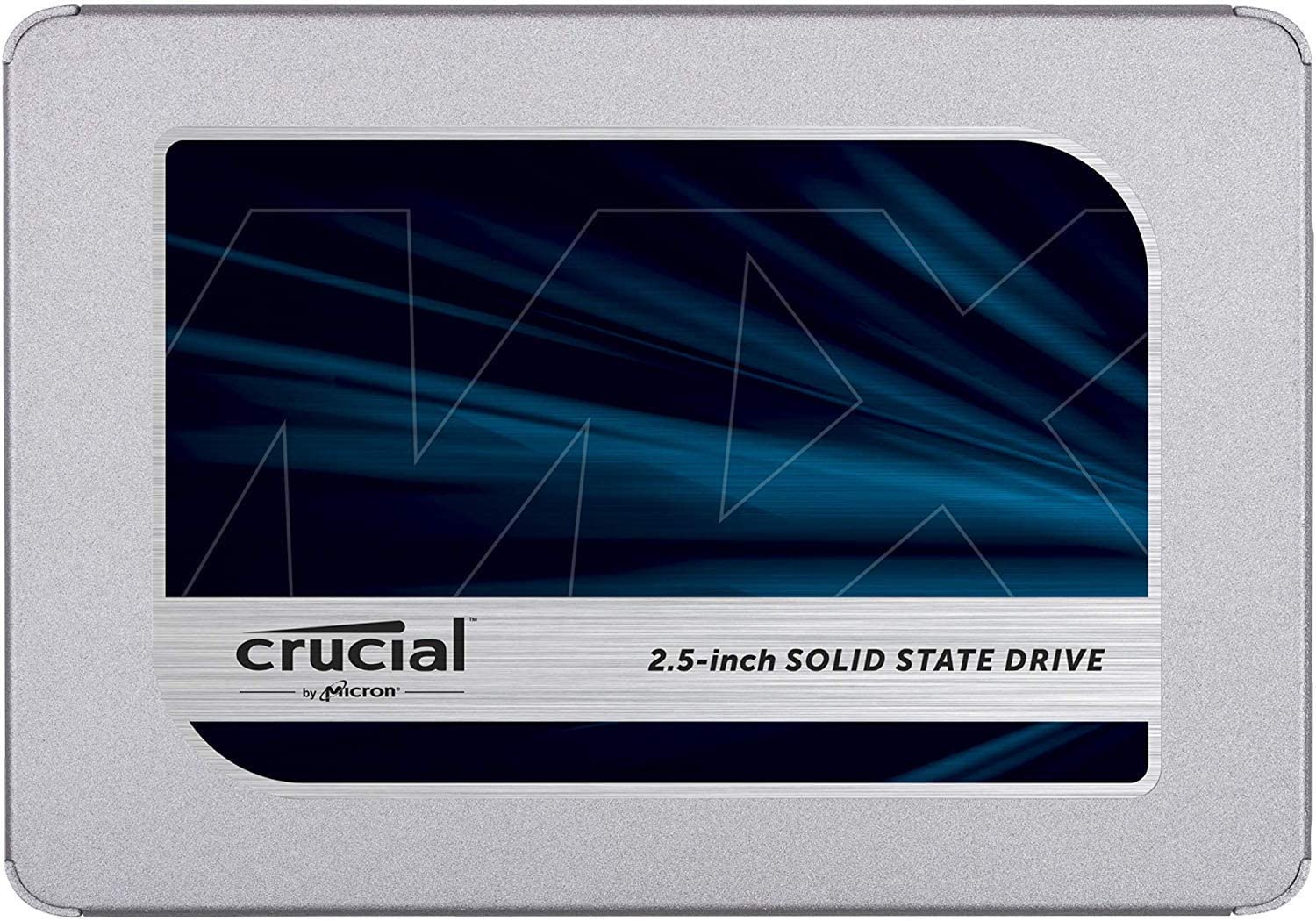
Crucial - Solid State Drive, MX500 500GB, CT500MX500SSD1(Z).
The best SATA SSD for peripheral storage
Product information
The Crucial MX500 doesn't belong in a Gen4 speed conversation. It's a SATA SSD — the oldest of the three SSD interface tiers —, and it tops out at 560 MB/s, which is around thirteen times slower than the WD_BLACK SN850. That sounds damning until you remember that it's still three to four times faster than a hard disk drive.
For systems that don't have M.2 slots — older motherboards, certain budget builds, laptops with only 2.5" drive bays — the MX500 is often the only meaningful upgrade available. In that context, 560 MB/s read and the elimination of mechanical read/write latency transform the user experience. An ageing laptop that took two minutes to boot Windows becomes a machine that boots in twenty seconds. A desktop running games off a five-year-old HDD becomes noticeably faster at loading screens and application launches.
The distinguishing features here are security and protection-oriented rather than speed-oriented. AES 256-bit hardware-based encryption — meaningful for any machine that leaves the house. Integrated power loss immunity that preserves in-progress writes if power cuts unexpectedly. Micron's 3D NAND technology has a decades-long track record of reliability. The 5-year warranty with Crucial's support infrastructure is among the most straightforward in the storage category.
What the MX500 doesn't include: any companion software. Competitors include drive management and monitoring tools; Crucial ships the MX500 without. Third-party tools (CrystalDiskInfo, for instance) fill the gap, but the absence is a legitimate minor complaint.
Pros
- Micron 3D NAND: proven manufacturing quality and reliability
- AES 256-bit hardware encryption — data security that doesn't require software overhead
- Integrated power loss immunity — protects data during unexpected shutdowns
- Available in 2.5" SATA format — compatible with older systems without M.2 slots
- 5-year limited warranty
- Significantly better than HDD at any budget price point
Cons
- SATA interface caps at 560 MB/s — substantially slower than any NVMe option
- No included drive management or monitoring software
- Heat generation under heavy workloads
- The speed ceiling is an inherent limitation of the SATA standard, not the MX500 specifically
Our Verdict: The MX500 is for the upgrade scenario where NVMe isn't an option — older laptops, budget desktops, systems where cost and form factor compatibility are the constraints. In that context, it's excellent: reliable, secure, protected, and meaningfully faster than the HDD it replaces. If your system supports M.2 NVMe, skip to a higher tier. If it doesn't, the MX500 is the right call.
FAQs: SSD for Gaming
Does SSD size affect gaming?
The size of an SSD, or Solid State Drive, can influence your gaming experience, but it doesn't directly impact the performance of the game in terms of frames per second. Rather, it affects aspects like load times, the number of games you can install, and the overall smoothness of your system's operation.
Load Times: SSDs are significantly faster than traditional hard drives (HDDs). This means that games installed on an SSD will generally load faster, reducing waiting times when starting up a game or loading levels. However, the size of the SSD doesn't have an impact on these load times - it's the speed of the SSD itself that matters.
Storage Capacity: The size of the SSD determines how many games you can install on it. Modern games can take up a lot of space - some AAA games require well over 100GB. Therefore, a larger SSD allows you to install more games or larger games.
System Operation: Having your operating system installed on an SSD can make your entire system run more smoothly. Again, this isn't directly related to gaming performance, but it can make for a better overall user experience.
What's better for gaming, higher RAM or SSD?
The choice between higher RAM and an SSD for gaming isn't straightforward because it largely depends on your current setup and the specific games you play. Both RAM and SSDs contribute to the overall gaming performance, but they serve different purposes.
RAM (Random Access Memory) is essential for smooth gameplay. It temporarily stores data needed to run applications and games. Having more RAM can allow games to load and run more smoothly, especially if they are memory-intensive. If your system frequently runs out of RAM when gaming, adding more can significantly improve performance.
SSDs (Solid State Drives), on the other hand, affect game load times and the speed at which in-game assets load. An SSD can cut boot and load times by a considerable amount compared to traditional hard drives. However, it doesn't directly affect the frame rate or graphics quality of games.
So, if your computer already has an SSD and sufficient RAM for the games you play, upgrading either might not significantly improve performance. If you're running out of storage space for games, upgrading to a larger SSD could be beneficial. If your games are lagging or crashing, additional RAM might help.
In general, if you have less than 8GB of RAM, increasing your RAM would likely have a more noticeable impact on performance than upgrading to an SSD. But if you have 8GB or more of RAM and are still using a traditional hard drive, switching to an SSD might give you a more noticeable performance boost.
Remember that the best choice depends on your specific situation, including the games you play and your current hardware.
Is it better to use an internal or external SSD for gaming?
When it comes to gaming, both internal and external Solid State Drives (SSDs) have their advantages and can significantly improve performance. However, the choice between the two often depends on your specific needs and circumstances.
Internal SSDs generally offer faster data transfer speeds, which can lead to quicker game load times and a smoother gaming experience. They're directly connected to your motherboard via SATA or NVMe interfaces, which allow for higher bandwidth than typical external connections.
On the other hand, external SSDs provide flexibility and portability. If you often move between different gaming setups or need to share games with friends, an external SSD could be a practical choice. While they are typically slower than internal SSDs due to the limitations of USB connections, the latest external SSDs still offer impressive speeds that can comfortably handle most games.
However, there's a significant point to consider: while an internal SSD can hold and run games, an external SSD is usually used as a backup or extra storage device and may not consistently run games as efficiently as an internal SSD.
In conclusion, if speed and performance are your top priorities, an internal SSD would be a better choice for gaming. But if you value flexibility and portability, then an external SSD could serve you well.
What do you need to know before buying an SSD?
If you're planning to upgrade your computer with a Solid State Drive (SSD), there are several factors you need to consider before making a purchase. This guide will help you understand the key points to keep in mind to ensure you make the right choice.
1. SSD Types
There are different types of SSDs available: SATA, PCIe, and M.2. SATA SSDs are the most common and offer good performance, but they are slower than the other two. PCIe SSDs connect directly to the motherboard and are faster than SATA SSDs. M.2 SSDs are even faster and smaller, but they require a specific slot on the motherboard.
2. Storage Capacity
SSDs come in various sizes, ranging from 120GB to 4TB or more. The right size for you depends on your storage needs. If you use your computer for basic tasks like browsing the internet or word processing, a smaller SSD may suffice. However, if you plan to store large files, play games, or run heavy applications, you might need a larger SSD.
3. Read and Write Speeds
The speed of an SSD is one of its biggest advantages over a traditional hard drive. Look for an SSD with high read and write speeds to ensure your system runs smoothly and quickly. However, remember that the actual speed may vary depending on your system's configuration.
4. Lifespan and Durability
While SSDs don't have moving parts and are generally more durable than hard drives, they still have a limited lifespan. This lifespan is often defined by the total amount of data that can be written to the drive, known as Terabytes Written (TBW), or Drive Writes Per Day (DWPD). Check these specifications to get an idea of the drive's expected lifespan.
5. Price
Generally, SSDs are more expensive than traditional hard drives in terms of cost per gigabyte. However, the improved speed and performance often justify the higher price. Keep in mind that prices can vary significantly between brands and models, so it's worth shopping around to find the best deal.
6. Brand and Reviews
Finally, consider the brand and reviews of the SSD. Well-known brands tend to be more reliable and offer better customer support. Also, check online reviews to see what other users have to say about the SSD's performance and reliability.
In conclusion, buying an SSD involves considering the type, storage capacity, speed, durability, price, and brand. By taking these factors into account, you can find an SSD that suits your needs and enhances your computing experience.
How to move your Steam games to an SSD?
If you're an avid gamer, you know that loading times can make or break your gaming experience. One way to significantly reduce these times is by moving your games to a Solid State Drive (SSD). SSDs are much faster than traditional hard drives, and they can drastically improve load times, making your gaming experience smoother. This article will guide you through the process of moving your Steam games to an SSD.
1. Create a New Steam Library on Your SSD
Before you start moving games, you need to set up a new Steam library on your SSD. Here's how:
- Open your Steam client.
- Click on "Steam" in the upper left corner, then select "Settings."
- In the Settings window, select "Downloads" and then click on "Steam Library Folders."
- Click on "Add Library Folder."
- Navigate to your SSD and create a new folder where you want your games to be stored. You can name it something like "SteamLibrary."
2. Move Your Steam Games to the SSD
Now that you've created a new Steam library on your SSD, you can start moving your games.
- Go to your Steam Library.
- Right-click on the game you want to move and select "Properties."
- In the Properties window, select the "Local Files" tab and click on "Move Install Folder."
- You'll see a drop-down menu where you can select your new Steam library on your SSD.
- After selecting the new location, click on "Move Folder."
Steam will then move the game's files to the new location. Note that the time it takes to move a game depends on its size—the larger the game, the longer it will take.
3. Repeat for All Games You Want to Move
You'll need to repeat this process for each game you want to move to your SSD. While it might be a bit tedious if you have a lot of games, the improved load times will be worth it!
4. Verify the Game Files
After you've moved a game, it's a good idea to verify the integrity of the game files. This ensures that everything was moved correctly and the game will run properly from its new location.
- Right-click on the game in your Steam Library and select "Properties" again.
- Go to the "Local Files" tab and click on "Verify Integrity of Game Files."
Steam will then check the game's files and download any that are missing or incorrect.
Conclusion
Moving your Steam games to an SSD can drastically improve your gaming experience by reducing load times. With a few simple steps, you can enjoy smoother, faster gaming in no time!
You can also check out YouTube here.
Is a 500GB SSD enough for gaming in 2026?
It's survivable but not comfortable. Modern AAA games regularly ship at 80–150GB, which means 500GB fills up with the OS and three or four games. If you're disciplined about uninstalling and reinstalling titles, it's workable. If you prefer having your full active library available, 1TB is the practical minimum.
NVMe Gen3 vs Gen4 — does it actually matter for gaming?
For most gaming scenarios today, the difference is smaller than the spec gap implies. Game load times improve with Gen4, particularly for open-world games with large streaming requirements and DirectStorage-enabled titles. Frame rates are GPU-bound, not storage-bound, in the vast majority of games. Gen4 is worth buying for future-proofing and DirectStorage readiness, not because Gen3 is inadequate today.
Do I need a heatsink on my NVMe SSD?
For Gen4 drives under sustained load (large installs, extended streaming sessions), yes — either a dedicated heatsink variant of the drive or the built-in M.2 thermal pad on your motherboard. Without thermal management, high-performance Gen4 drives can throttle under sustained load, which undermines the speed advantage you paid for.
Can I use a gaming SSD in a PS5?
Yes, for compatible NVMe M.2 drives. The PS5's M.2 expansion slot accepts PCIe Gen4 NVMe SSDs in M.2 2230 or M.2 2280 form factors. The Seagate FireCuda 530 is officially validated for PS5 use. Always check Sony's current recommended drive list, as firmware updates occasionally change compatibility requirements.
What is DirectStorage and why does it matter?
DirectStorage is a Microsoft/Xbox technology that allows supported games to load assets directly from an NVMe SSD to the GPU without routing through the CPU. The result is dramatically faster level loading and the ability to render much more detailed environments in real-time. It requires an NVMe drive, a DirectX 12 Ultimate GPU, and Windows 11. Not all games support it yet, but adoption is growing steadily among major titles.
Looking for additional electronic essentials?
Check out these reviews!
 Save With Reviews
 Neil Fajardo
 Neil Fajardo