
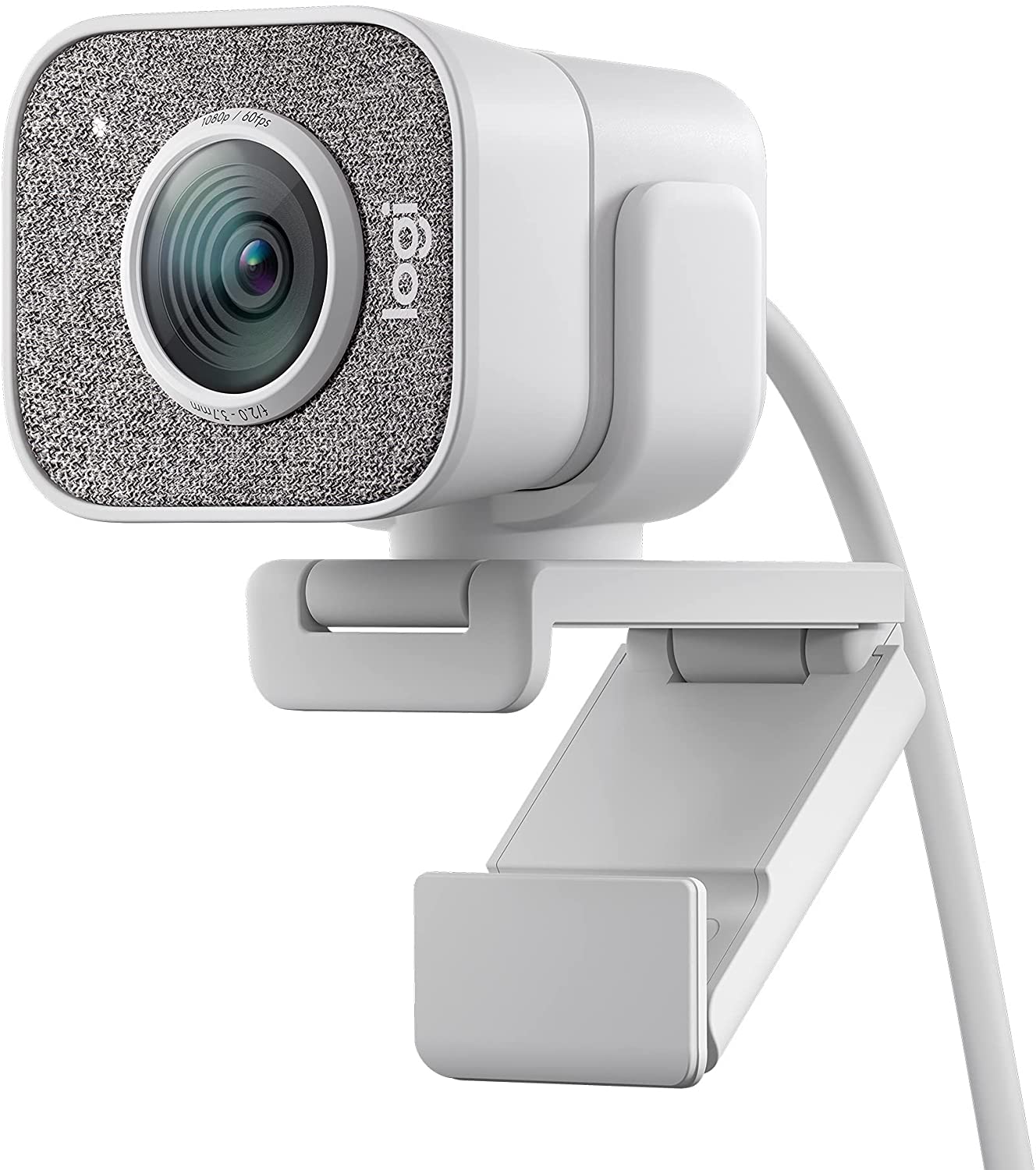
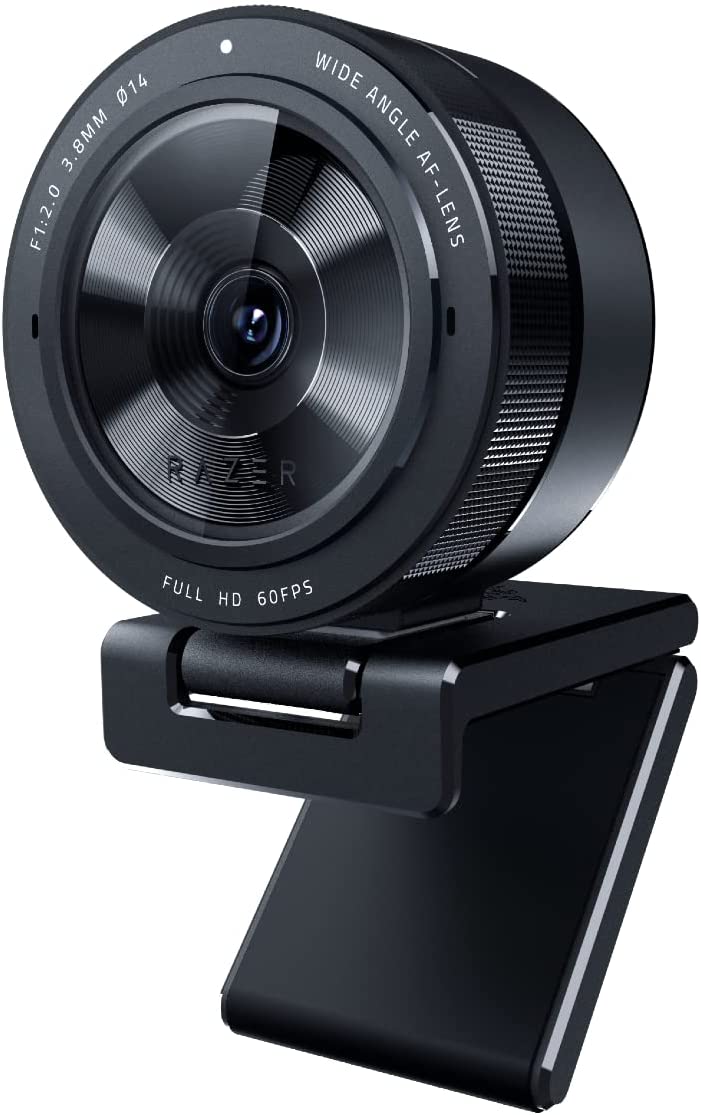
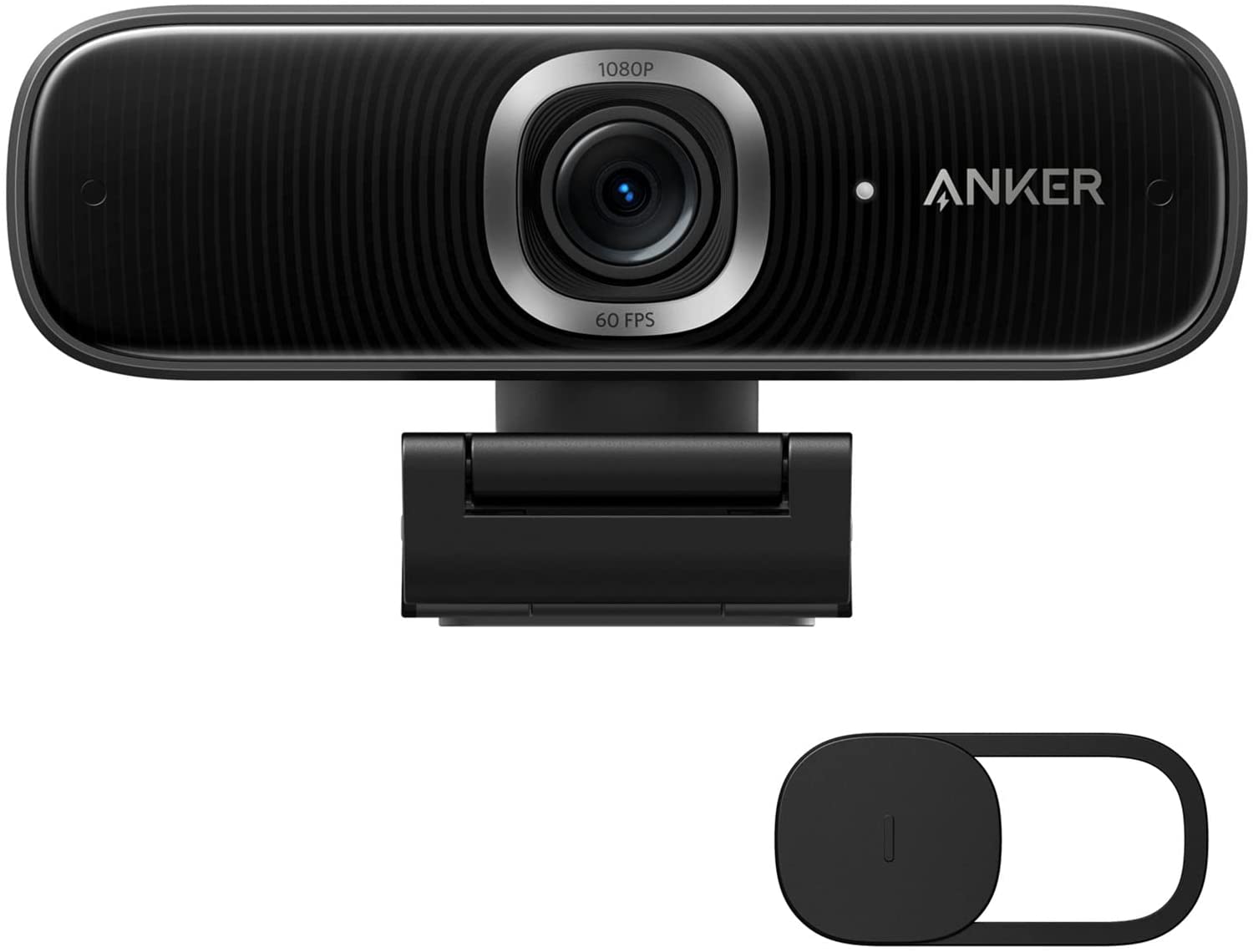
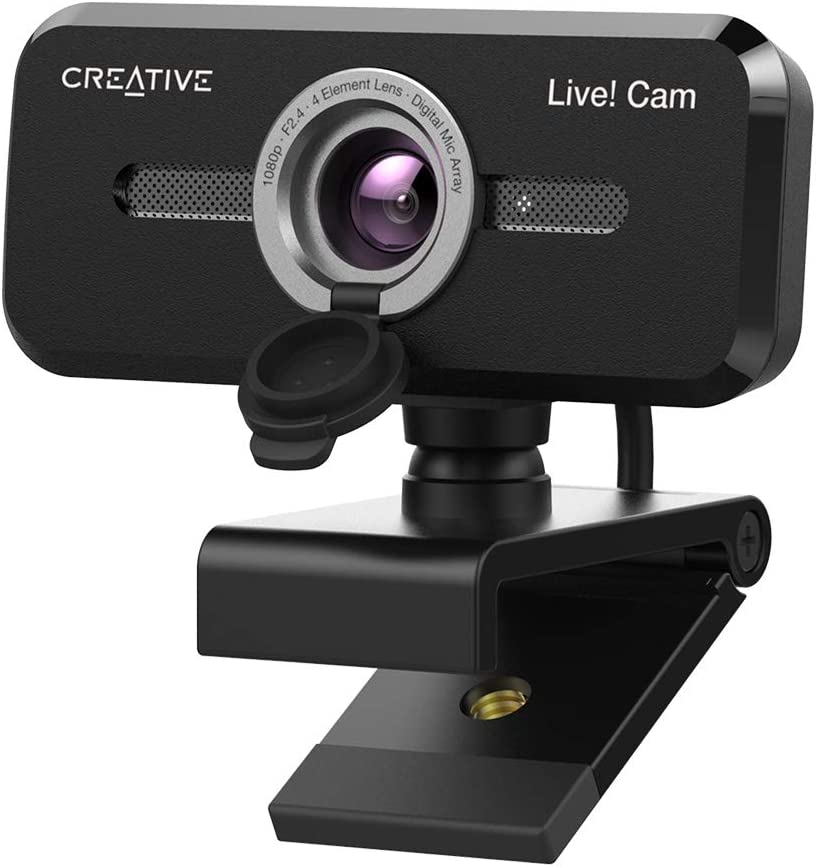
Quick Answer: The best webcam for most people in 2026 is the Logitech StreamCam — 1080p at 60fps, smart autofocus with face tracking, USB-C connectivity, and full OBS/Streamlabs compatibility in a design that handles both landscape and portrait streaming. For low-light performance that nothing else at this price tier touches: Razer Kiyo Pro with its adaptive Sony STARVIS sensor and HDR. Budget pick with genuinely smart features: Anker PowerConf C300 — AI framing, dual noise-cancelling mics, adjustable field of view. Plug-and-play simplicity with no driver installation: Creative Live! Cam Sync 1080p V2. Professional calls and directional audio: Poly Studio P5.
There's a specific kind of low-grade embarrassment that comes from joining a video call and watching your own face in the corner of the screen — blurry, greenish, lit from underneath like someone telling a ghost story at a campfire. You know you look better than this in real life. The camera is lying. Everyone on the call is too polite to say anything. And you're sitting there thinking: I should probably do something about this.
Most of us don't. We accept the laptop camera as a fixed fact of video calling life, like airport queues or the way the last five minutes of a meeting always extend into another fifteen. The camera is there. It's technically functional. It works in the loosest possible sense of that word.
But here's the thing — dedicated webcams have gotten very good, very fast. And weirdly affordable. The shift to remote work, hybrid offices, content creation, and Discord calls that somehow last until 2 am — all of it has poured development money into a category that spent twenty years as an afterthought. What you can buy for under $130 now would have cost three times that in 2019 and produced worse results.
Your laptop's built-in camera is almost certainly a 720p sensor with fixed focus and a microphone that captures the ambient hum of your laptop fan with unsettling fidelity. It was designed to meet a spec checkbox, not to make you look good. A dedicated webcam is designed for one specific job — making you look and sound like a person who has their life together on camera — and the better ones do it with a kind of quiet competence that genuinely surprises.
What Makes a Webcam Actually Worth Buying?
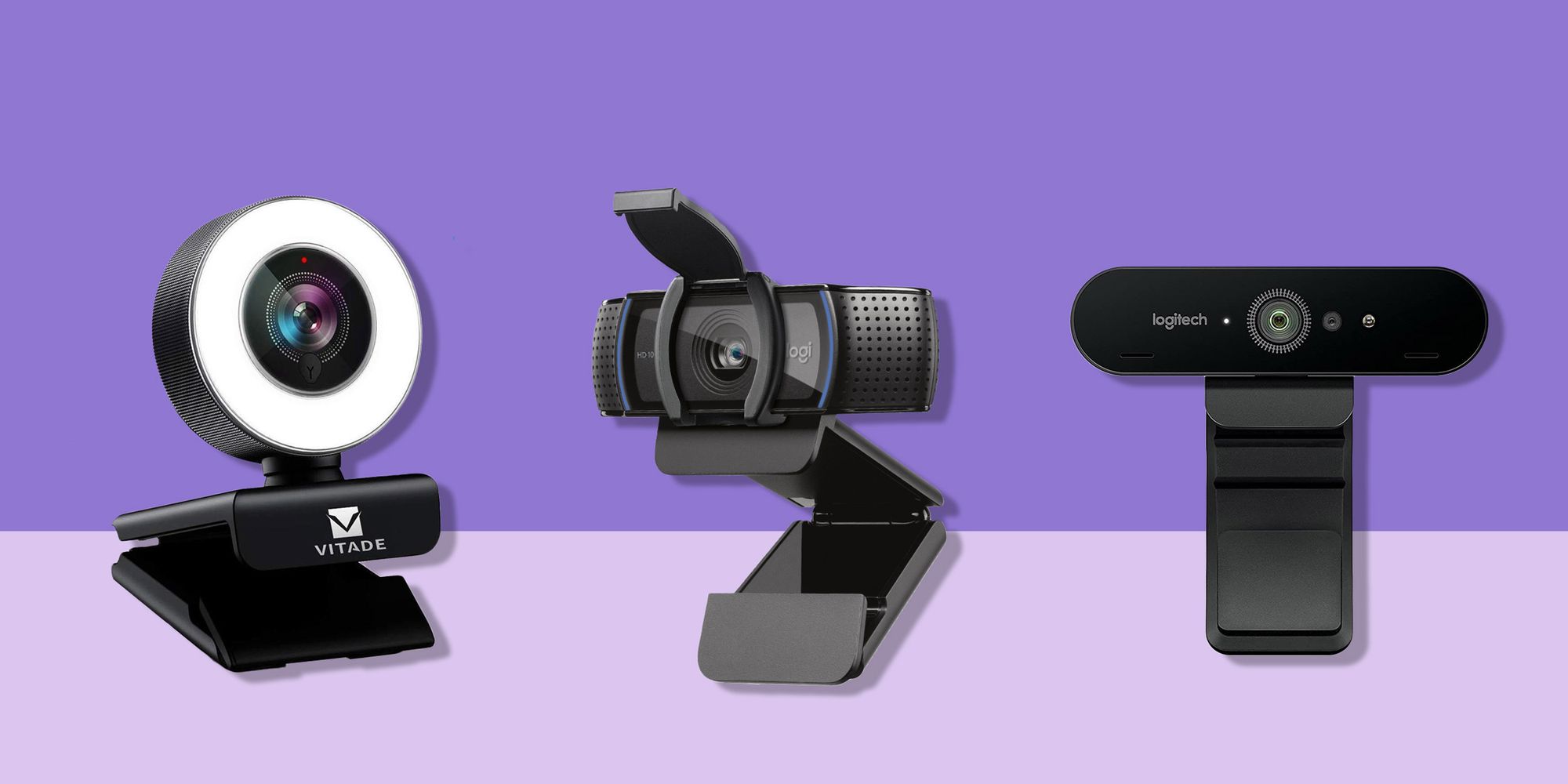
Resolution is the entry point, not the destination. 720p is the floor in 2026 — anything below it looks like you're broadcasting from a CCTV camera in a car park. 1080p is the practical standard; it handles Zoom, Teams, YouTube, Twitch, and everything in between. 4K exists — the Logitech Brio being the famous example — and it's genuinely impressive, but for most use cases it's resolution in search of a problem. Your streaming platform will probably compress it anyway.
Frames per second matter more than most people think. 30fps is fine for static calls. 60fps is what you want if you move, gesture, present with your hands, or stream anything with motion. The difference between 30fps and 60fps isn't subtle when you're mid-sentence and waving your hands around for emphasis — at 30fps, there's a faint motion-blur quality that reads as slightly cheap. At 60fps, the image stays clean through movement.
Low-light performance is where cameras differentiate fastest. Your room's lighting is probably worse than you think — particularly in the afternoon when the light drops or in offices with overhead fluorescent lighting that photographs badly. The sensor size and aperture of a webcam determine how it handles that. The Razer Kiyo Pro's adaptive light sensor is the standout on this list; it adjusts to changing conditions in a way that most webcams don't.
The microphone is not an afterthought. A webcam's built-in mic is the audio source for probably fifty percent of calls where people haven't invested in separate audio hardware. If it sounds hollow, tinny, or picks up every background noise with equal enthusiasm, it undermines the whole point of having a good camera. Noise cancellation — actual noise cancellation, not just a claim on the box — matters in real-world home and office environments.
Autofocus. Specifically, face-tracking autofocus. Fixed-focus webcams are fine if you sit in exactly one position. The moment you lean back, check something off-screen, or simply shift in your chair, a fixed-focus camera starts to lose sharpness. Smart autofocus that follows your face and adjusts exposure continuously is the single feature that most clearly separates a $46 webcam from a $160 one.
Laptop Camera vs. Dedicated Webcam: The Actual Numbers
A typical built-in laptop camera: 720p, fixed focus, single omnidirectional mic, no HDR, no low-light correction, no field-of-view adjustment. Designed to pass a hardware specification checklist. The image it captures is adequate for the era it was designed in, which was, frankly, a while ago.
A mid-range dedicated webcam like the Anker PowerConf C300: 1080p at 60fps, AI autofocus, dual noise-cancelling mics, adjustable field of view, HDR, low-light correction. The difference in practice is not subtle. It's the difference between looking like you're calling from a budget hotel and looking like you're calling from a professional setup.
The privacy aspect is worth mentioning, too. Several dedicated webcams — the Creative Sync V2 and Poly Studio P5 among them — include physical lens covers or privacy shutters. Built-in laptop cameras don't. Covering a built-in camera requires a piece of tape, which is somehow both a reasonable security measure and vaguely depressing to maintain.
At a Glance — 2026 Comparison Table
| # | Product | Resolution | FPS | Connectivity | Key Feature | Best For | Rating |
|---|---|---|---|---|---|---|---|
1 | Logitech StreamCam | 1080p | 60fps | USB-C | Portrait/landscape dual mount, OBS/Streamlabs | Streamers, content creators | ★★★★½ — 4.5/5 |
2 | Razer Kiyo Pro | 1080p | 60fps | USB 3.0 | Adaptive light sensor, HDR, adjustable FoV | Low-light, professional streaming | ★★★★¼ — 4.3/5 |
3 | Anker PowerConf C300 | 1080p | 60fps | USB-A | AI framing, noise-cancelling dual mics, HDR | Remote work, video conferencing | ★★★★ — 4.2/5 |
4 | Creative Live! Cam Sync 1080p V2 | 1080p | 30fps | USB-A | Plug-and-play, privacy lens cover, SmartComms | Budget, simplicity, everyday calls | ★★★★ — 4.1/5 |
5 | Poly Studio P5 | 1080p | 30fps | USB-A | Directional mic, privacy shutter, Poly Lens app | Professional calls, educators | ★★★★ — 4.0/5 |
What Should You Actually Spend?
Under $65: Entry-level territory. You'll get 1080p, probably 30fps, basic fixed focus, and a passable built-in mic. Better than a laptop camera — but not by the margin that makes you stop thinking about it.
$100–$160: Where the interesting options live. The Anker PowerConf C300, Creative Live! Cam Sync and Poly Studio P5 sit here. Smart features, real noise cancellation, proper autofocus, directional audio, and HDR. The jump from entry-level to this tier is more noticeable than the jump from this tier to premium.
£130–£180: The StreamCam and Razer Kiyo Pro. Full smart feature stacks, 60fps, premium sensors, streaming-optimised. If video is central to your work or content, this is the tier that removes webcam quality as a variable.
Above $265: 4K territory. Logitech Brio, Insta360 Link. Genuinely impressive — also genuinely unnecessary for anything other than high-production content creation or specific enterprise use cases where 4K detail serves a purpose.
Final Thoughts
There's something almost philosophical about why video quality matters more than it should. Rationally, what you're saying on a call is more important than how you look when saying it. Rationally, your credentials don't improve because your background is in focus. But perception doesn't run on rational accounting — it runs on first impressions and the subtle subconscious signals that communicate whether someone has their situation under control.
A good webcam is one of those signals. Not the most important one. Probably not even close. But it's also a $130 fix that takes ten minutes to implement and never needs thinking about again. That's a good ratio.
What I've noticed — and this is genuinely hard to explain until you've experienced it — is that looking good on camera changes how you present. You stop slightly hunching toward the screen. You stop that barely perceptible self-consciousness that comes from knowing you look slightly off. You just... talk. Like a person who is comfortable being seen.
Maybe that's worth something. Probably more than the camera costs.
Can we help? We've done the research for you and found the Best Webcam on Amazon.
Every day, we read hundreds of reviews and try the highest-rated products we have on our list.
Best Webcam - Reviews
Logitech StreamCam — Best Overall
Rating: 4.5/5
Product information
The StreamCam arrived at exactly the right moment — when the line between "content creator" and "person who has video calls for work" had blurred to the point of irrelevance. Logitech designed it for streamers, but it turns out the features that make a camera good for streaming also make it excellent for everything else. Funny how that works.
The 1080p at 60fps combination is the baseline expectation for any streaming camera in 2026, and the StreamCam delivers it cleanly — but the differentiator is the intelligence behind the image. Smart autofocus that tracks your face and adjusts exposure based on where you are in the frame, not just a fixed exposure locked in when you plug it in. The result is that the camera stays flattering through movement, through changing light, through the inevitable moment where you lean sideways to grab something off the edge of your desk.
The dual-mount design is a smaller deal than Logitech's marketing makes it sound for most users, but genuinely useful for mobile-first content creators. Portrait mode for Instagram and TikTok Live, landscape for everything else — the camera rotates cleanly between orientations, and the Logitech Capture software registers the orientation change automatically. No fiddling.
USB-C connectivity is a small but considered touch. Every laptop made in the last two years has a USB-C port. The braided cable is longer than the standard webcam fare. Pairing with OBS and Streamlabs requires nothing more than plugging in — the StreamCam appears as a source immediately, no driver installation, no configuration ceremony.
The limitations are real. It's one of the more expensive webcams in its resolution class — you're paying for the smart features and the brand. The field of view is narrower than some competitors, which suits solo talking-head content but can feel tight if you want to capture more background. And full portrait-mode functionality — specifically, the ability to lock vertical orientation — requires Logitech Capture software running in the background.
Pros
- 1080p at 60fps — smooth, professional-grade video for streaming and conferencing
- Smart face-tracking autofocus and exposure adjust continuously through movement
- Portrait and landscape dual-mount — versatile for different platforms and content formats
- USB-C connectivity — modern standard, no adapters needed on current hardware
- Native OBS and Streamlabs optimisation — zero-friction setup for streamers
- Premium build quality that matches the price point
Cons
- Higher price than comparable 1080p webcams without smart features
- Relatively narrow field of view — better for solo use than group or room shots
- Portrait mode requires Logitech Capture software running — adds background overhead
- Requires reasonably current hardware for optimal performance
Our Verdict: The StreamCam is the webcam for anyone who takes video seriously — whether "seriously" means a Twitch stream with a growing audience, a remote job where appearing professional on camera matters, or just the quiet satisfaction of being the person on the call who looks like they know what they're doing. The smart autofocus earns its cost premium within the first week.
Razer Kiyo Pro — Best for Low-Light Performance
Rating: 4.3/5
Product information
Here's the thing about low-light performance in webcams: almost all of them claim it. The wording varies — "enhanced low-light", "low-light correction", "optimised for dim environments" — but most of it means "we've boosted the brightness in software, which introduces grain and washes out colour." The Razer Kiyo Pro does something actually different.
The Sony STARVIS sensor at the heart of the Kiyo Pro is back-illuminated — a technology developed for security cameras that need to produce usable images in near-darkness. It captures significantly more light per pixel than the sensors in most consumer webcams, which means the Kiyo Pro produces clean, detailed, properly coloured images in lighting conditions that reduce other webcams to grainy outlines. If you're working in a room without dedicated lighting, next to a window with variable natural light, or in an office with fluorescent overhead strips that somehow make everyone look slightly ill, this is the camera that handles it without drama.
The uncompressed 1080p output is a meaningful distinction for streamers. Most webcams compress their video output before sending it to the PC — a necessary trade-off that reduces bandwidth demand but also reduces image fidelity. The Kiyo Pro sends raw, uncompressed data, which preserves detail that compressed streams lose and gives OBS or Streamlabs cleaner source material to work with.
Adjustable field of view — 80°, 90°, or 103° selectable via Razer Synapse — is a feature most webcams don't offer. Tighter framing for close-up talking-head content, wider for capturing more of a gaming setup or a room behind you. The HDR implementation handles high-contrast situations — bright windows behind you, mixed lighting — more gracefully than non-HDR cameras.
The caveats: USB 3.0 is required for full performance, which limits compatibility with older machines. Some users have flagged software compatibility issues with specific streaming platforms — worth testing before committing if you use anything outside the mainstream OBS/Streamlabs ecosystem.
Pros
- Sony STARVIS adaptive sensor: genuinely superior low-light performance, not software trickery
- Uncompressed 1080p output — cleaner source material for streaming and recording
- HDR corrects overexposed and underexposed areas simultaneously
- Adjustable field of view (80°, 90°, 103°) — real flexibility for different shooting setups
- 60fps smooth motion through fast movement and gestures
- No-driver setup — plug in and it works
Cons
- Requires USB 3.0 — not compatible at full performance with older USB 2.0 ports
- Premium price point — reflects sensor quality, but not budget-friendly
- Some software compatibility issues were reported with non-mainstream platforms
- No digital zoom
Our Verdict: The Kiyo Pro is the right answer to a specific question: "What webcam do I buy if my lighting situation is genuinely difficult?" The Sony STARVIS sensor isn't marketing language — it's a materially better low-light solution than anything else at this price point. For streamers who can't or won't invest in dedicated lighting, this is the shortcut that works.
Anker PowerConf C300 — Best for Remote Work & Video Conferencing
Rating: 4.2/5
Product information
Anker built its reputation on charging bricks and cables — practical, well-engineered things that do what they say without fuss. The PowerConf C300 applies that same design philosophy to webcams, and the result is one of the most fully-featured video conferencing cameras available under £150.
The AI-powered framing is the headline. It's not just autofocus — the camera tracks your face and adjusts the framing dynamically, keeping you centred in the frame even as you move around. For presenters who talk with their hands, educators who step away from the desk, or anyone whose attention naturally wanders to a second screen mid-call, this is a feature that removes the awkward re-centring moment that disrupts video calls with lesser cameras.
The dual noise-cancelling microphones are better than they have any right to be at this price. They pick up voice clearly at normal speaking volume while reducing keyboard noise, background conversation, HVAC hum, and whatever unpredictable domestic sounds emerge during any given work-from-home day. Combined with the AI-powered low-light correction — which is software rather than the hardware approach of the Kiyo Pro, but still meaningfully better than nothing — the C300 handles the full video call experience rather than just the camera component.
The adjustable field of view is broad: 65° for a tight close-up, 90° for standard, 115° for wide group shots. This range covers most scenarios without requiring a different camera for different uses. HDR balances exposure in high-contrast lighting situations. The whole thing connects via USB-A and requires Anker's software for field-of-view adjustment — a mild dependency worth noting.
Pros
- AI-powered face tracking and framing — stays centred through movement
- Dual noise-cancelling microphones — strong audio performance for calls
- Adjustable field of view (65°, 90°, 115°) — covers solo to group setups
- AI auto low-light correction — handles dim environments better than standard webcams
- HDR for balanced exposure in high-contrast lighting
- 1080p at 60fps — smooth, professional video quality
Cons
- Field-of-view adjustment requires Anker software — a software dependency for the key feature
- No built-in lighting
- Some compatibility issues were reported with specific operating systems
- No digital zoom
- Higher price than some fixed-feature 1080p alternatives
Our Verdict: The PowerConf C300 is the webcam for the serious remote worker — someone whose livelihood involves appearing professional, articulate, and well-lit on video calls for four to six hours a day. The AI framing keeps you composed, the dual mics keep your audio clean, and the adjustable field of view means you're not stuck with one option. The software dependency for FoV adjustment is a mild annoyance in an otherwise thoughtfully designed package.
Creative Live! Cam Sync 1080p V2 — Best Value Pick
Rating: 4.1/5
Product information
The Creative Live! Cam Sync 1080p V2 is the answer to a question a lot of people are actually asking: what's the best webcam I can buy that just works, without installing software, without configuring anything, without reading a manual? The answer — this one. Plug into any USB-A port, open Zoom or Teams, and it appears. That's the entire setup process.
UVC compliance (Universal Video Class) means the operating system recognises it as a camera instantly, without manufacturer drivers. It works on Windows, Mac, Linux, and Chromebooks without distinguishing between them. The 77° field of view covers one person at a desk comfortably with a little room around the edges — not wide enough for groups, but appropriate for solo use. The 360° horizontal rotation and 30° vertical tilt give you genuine positioning flexibility within the clip mount.
The SmartComms Kit is a genuinely useful addition: VoiceDetect automatically unmutes the microphone when it detects you speaking, and NoiseClean-out filters background noise during active audio. These features require the Creative app (Windows 10 only for SmartComms), but the webcam functions perfectly well without them if you're on Mac or Linux — you just don't get the automatic unmute.
The integrated lens cover is a small feature that earns outsized appreciation in daily use. Physical lens cap: closed when you're not on camera, opened when you are. No tape. No Post-it note. No wondering whether the camera light means it's actually off or just in standby. It's privacy done properly, and it protects the lens from dust when the webcam is stored.
The honest limitation is the 30fps ceiling — fine for calls and everyday use, but not the 60fps you'd want for streaming or high-motion content. And the audio, while adequate, isn't the strength of this camera — the mics can pick up background noise more than the noise-cancelling dual-mic setups on the C300 or StreamCam.
Pros
- Plug-and-play via UVC compliance — no driver installation, works on all major platforms
- Integrated lens cover — proper physical privacy protection
- 360° horizontal rotation and 30° vertical tilt — flexible positioning
- VoiceDetect and NoiseClean-out SmartComms (Windows 10, requires Creative app)
- Universal clip plus tripod mount compatibility
- Most affordable full-featured 1080p option on this list
Cons
- 30fps ceiling — not suited for streaming or high-motion content
- SmartComms features require Windows 10 and the Creative app — limited platform support
- Audio quality can be noisy under some conditions — not the standout mic on this list
- Limited vertical adjustability of the clip mount
- No digital zoom
Our Verdict: The Creative Live! Cam Sync 1080p V2 is the webcam for people who want to stop thinking about webcams. Plug in, call, done. The physical lens cover is a feature that more expensive cameras should have. The SmartComms kit is a thoughtful addition for Windows users. If you don't need 60fps and your primary use is calls rather than streaming, this is the most sensible money you'll spend on this category.
Poly Studio P5 — Best for Professional Use
Rating: 4.0/5
Product information
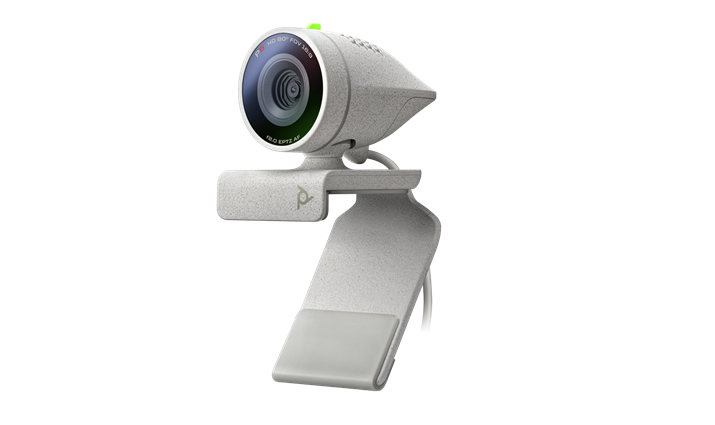
Poly — formerly Plantronics, a company that made radio headsets for NASA before pivoting to enterprise audio — makes communication hardware for professional environments. The Studio P5 carries that heritage into webcam form. It's not trying to be a streaming camera or a content creation tool. It's trying to make you look and sound credible in a video conference with people who are forming professional impressions of you.
The 1080p output is clean and sharp — the kind of image quality that reads as "professional setup" rather than "person with a laptop." The 80° field of view frames one person at a desk well, tight enough to focus attention without feeling claustrophobic. What distinguishes the P5 at this price point isn't the resolution or the frame rate — it's the directional microphone.
Most webcam microphones are omnidirectional: they capture sound from all directions, which means they capture your voice and everything else in the room with equal fidelity. The Studio P5's integrated directional mic focuses its pickup pattern toward the speaker — your voice comes through clearly while the ambient noise floor drops. In a home office with background sounds, or a shared workspace with ambient conversation, that directionality makes a real audible difference to call quality.
The built-in privacy shutter is properly implemented: a physical cover that slides in front of the lens, leaving no ambiguity about whether you're visible or not. The tripod mount and monitor clip give you flexibility on positioning — useful for educators who might want to angle the camera toward a whiteboard, or presenters who need a different height than monitor-top provides.
Fixed focus is the notable absence. Unlike every other camera on this list, the P5 doesn't autofocus — the focus is set at the factory for a standard desk-to-face distance. If you move significantly closer or further from the camera, the image softens. For standard professional use, this is rarely an issue. For anyone who gestures close to the camera or works at variable distances, it's a limitation worth knowing.
Pros
- Integrated directional microphone — reduces ambient noise in the pickup pattern
- Clean 1080p output at standard professional distance
- Built-in physical privacy shutter — no ambiguity about whether you're visible
- Tripod mount plus monitor clip — positioning flexibility for different setups
- Easy USB-A setup with Poly Lens Desktop App for video customisation
- Designed specifically for professional video conferencing
Cons
- Fixed focus — softens at non-standard distances, no autofocus adjustment
- 30fps ceiling — not suitable for streaming
- The monitor clip has a limited adjustment range
- Software dependency for video setting customisation (Poly Lens app)
- Some reported compatibility issues with certain conferencing platforms
Our Verdict: The Poly Studio P5 is for the professional who prioritises audio clarity and a polished call image over streaming features they'll never use. The directional microphone alone sets it apart from consumer-oriented alternatives in its price range. The fixed focus is a genuine trade-off — acceptable for standard professional use, potentially frustrating for anything more dynamic.
FAQs: Webcams
Built-in vs external webcams: What are the differences?
When it comes to webcams, you typically have two options: built-in webcams that come integrated with your laptop or monitor, and external webcams that you purchase separately and connect to your device. Here are some of the key differences between the two:
1. Video Quality: External webcams often provide better video quality than built-in ones. They usually offer higher resolution, better low-light performance, and more features like auto-focus and light correction. This is because they have more space for larger lenses and better sensors.
2. Audio Quality: Similar to video quality, external webcams usually have superior audio due to larger and better-quality microphones. Some even offer noise-reduction features.
3. Flexibility & Positioning: Built-in webcams offer limited flexibility as they are fixed in one place. On the other hand, external webcams can be moved around and positioned as needed, offering a wider range of viewing angles.
4. Convenience: Built-in webcams win in terms of convenience. They come pre-installed and don't require any additional setup. External webcams, however, need to be set up and require a free USB port.
5. Privacy: Many external webcams come with physical shutters or covers for the lens, providing an extra layer of security. Built-in webcams usually don't have this feature, although you can purchase separate webcam covers.
Conclusion
While built-in webcams are more convenient, external webcams generally offer better video and audio quality. Your choice will depend on your specific needs and how you plan to use your webcam.
Is 1080p good enough for a webcam in 2026?
Yes — for the vast majority of use cases, 1080p is the correct choice. Video conferencing platforms, including Zoom, Teams, and Google Meet cap quality at 1080p for most account tiers. Streaming platforms compress video output from the source, which means 4K source footage often ends up looking similar to 1080p after platform compression. 4K webcams justify their cost for specific high-production scenarios, not for everyday use.
Is 30fps enough for a webcam?
For calls, presentations, and most video conferencing, 30fps is sufficient — the motion is smooth enough for static or low-movement scenarios. Where 60fps becomes noticeably better: streaming, content recording, presentations with a lot of gestures and movement, and any scenario where you're moving your hands expressively on camera. If you're buying a camera primarily for professional calls, 30fps is fine.
What's the difference between a built-in and an external webcam?
Four main differences: image quality (external sensors are larger and better), audio quality (external mics are bigger and often noise-cancelling), flexibility (external cameras can be repositioned, built-in cameras can't), and privacy features (most external cameras have physical lens covers; built-in cameras don't). The trade-off is convenience — built-in cameras require no setup, no USB port, and no additional hardware.
Does webcam quality matter for streaming?
Yes — significantly. Your stream's visual quality is the first impression viewers form. A clear, stable, properly exposed image communicates production value in a way that retains viewers. Most streaming platforms deliver video that's been compressed from source, so starting with a cleaner 1080p 60fps source (like the StreamCam or Kiyo Pro) produces a better final compressed output than starting with lower-quality footage.
What frame rate do I need for streaming?
60fps is the standard for smooth streaming video — particularly for gaming streams where you may be gesturing frequently, or for any content with expressive movement. 30fps is acceptable for more static presentation-style streams. Most streaming platforms support up to 60fps delivery, and the source footage should match or exceed that target.
Looking for additional electronic essentials?
Check out these other reviews!
 Neil Fajardo
 Neil Fajardo
 Neil Fajardo